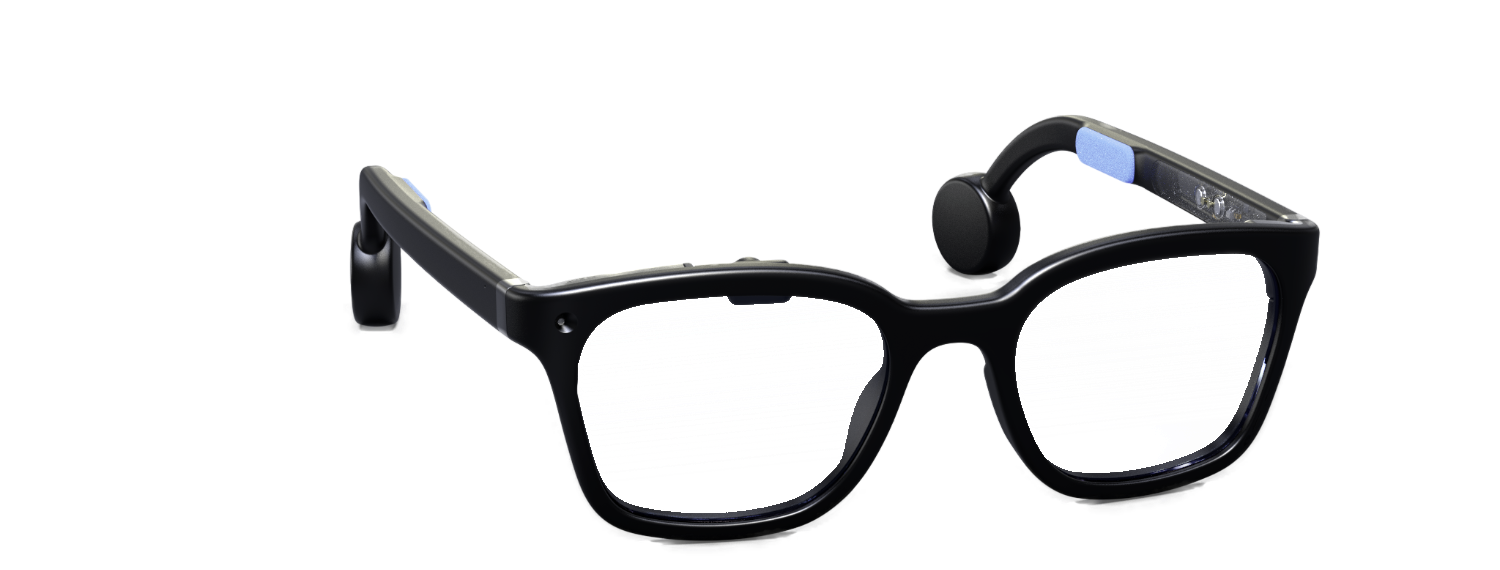
Getting started with Halo
Whether you’re using Halo with Noa, or making your own apps, you’ll find everything you need to know about your Halo hardware here.
How do I charge my Halo?
Your Halo will automatically start charging whenever the magnetic charging connector is attached to the charging pins. The white LED on the left arm will pulse while charging and remain on when fully charged.
How do I put Halo into pairing mode?
Press and hold Halo’s button for approximately 10 seconds until the white LED starts flashing. Halo is now in pairing mode and ready to connect to a new device.
How do I connect to my Halo for the first time?
Ensure your Halo is charged and in pairing mode. Then from any Halo-compatible app, such as Noa, press Scan for Halo and follow the on-screen instructions to pair. Accept the pairing request on your phone (Android users may need to tap Pair twice).
How do I update my Halo?
Whenever firmware updates are available for your Halo, you’ll be notified in your Brilliant Noa app. Ensure Halo is well charged before updating to prevent partial updates. Keep the app open and within close range of your Halo during the entire update.
Where can I download Brilliant Noa?
Brilliant Noa is coming soon to both Apple App Store for iOS and Google Play Store for Android.


Developer?
Get started making your own apps today. Follow the links below to familiarize yourself with the Halo hardware and the Brilliant SDK.
- Brilliant SDK overview
- Python SDK
- Flutter SDK
- Web Bluetooth SDK
- Lua API Reference
- Bluetooth LE Specifications