Using Halo
This page covers the day-to-day operation of your Halo. For setup, charging and pairing, see Getting started with Halo. For technical details, see the Hardware page.
Contents
Fitting and focusing the display
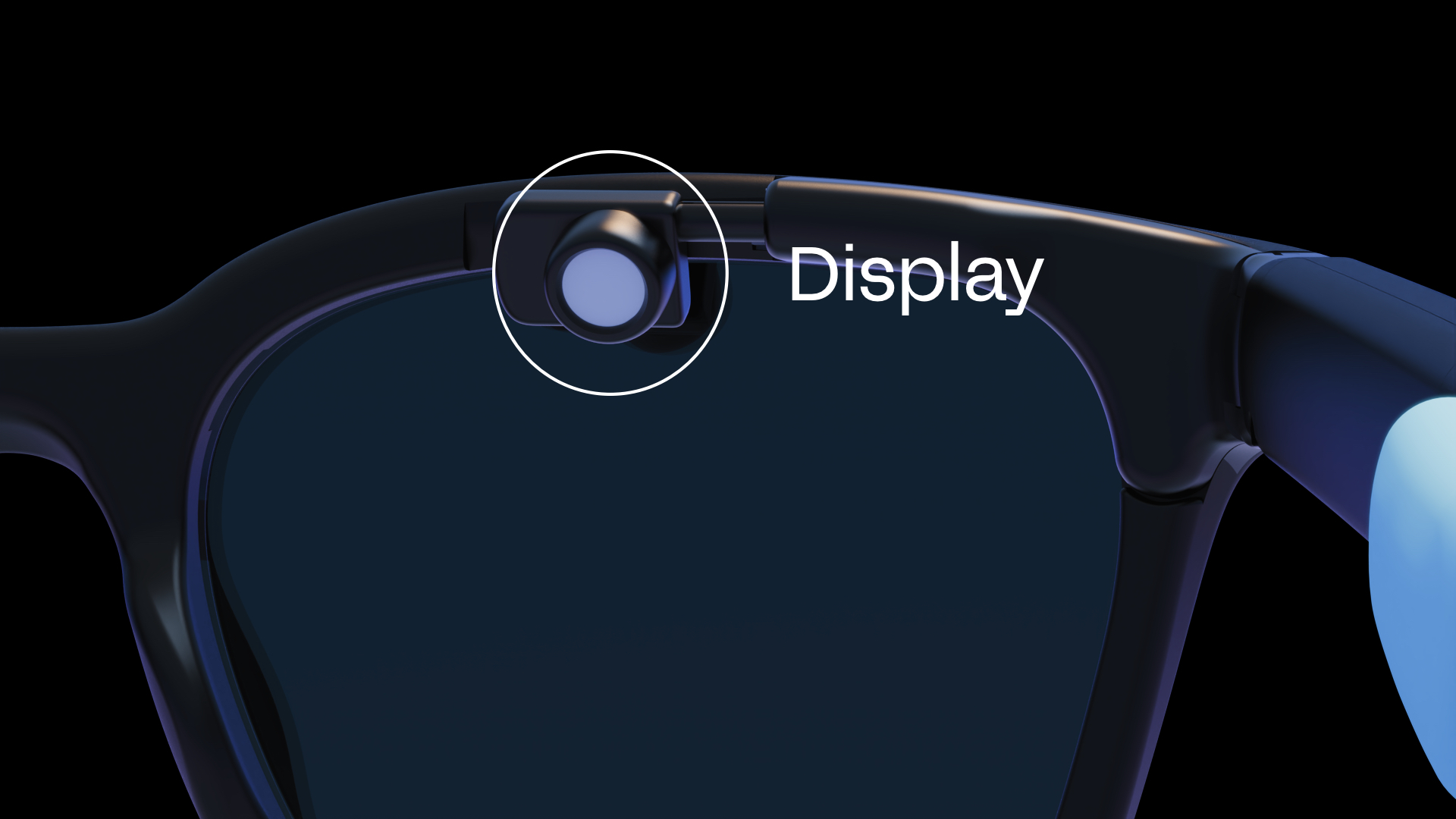
Aligning the display with your eye
The display mount can be adjusted to align with your eye by sliding it left and right, and tilting it up and down. The display mount can be a little stiff when moving.
When the display mount is fully extended to the left it will stop moving. Do not try to extend it any further.
Focusing the display
The display lens can be rotated to focus the display to your eyesight. The focus range covers +2 to −6 diopters.
Be careful not to keep rotating the display lens counter-clockwise — it will eventually come off the thread. If this happens, reattach it by placing the display lens onto the mount neck and rotating it clockwise, like a bottle top.
Button controls
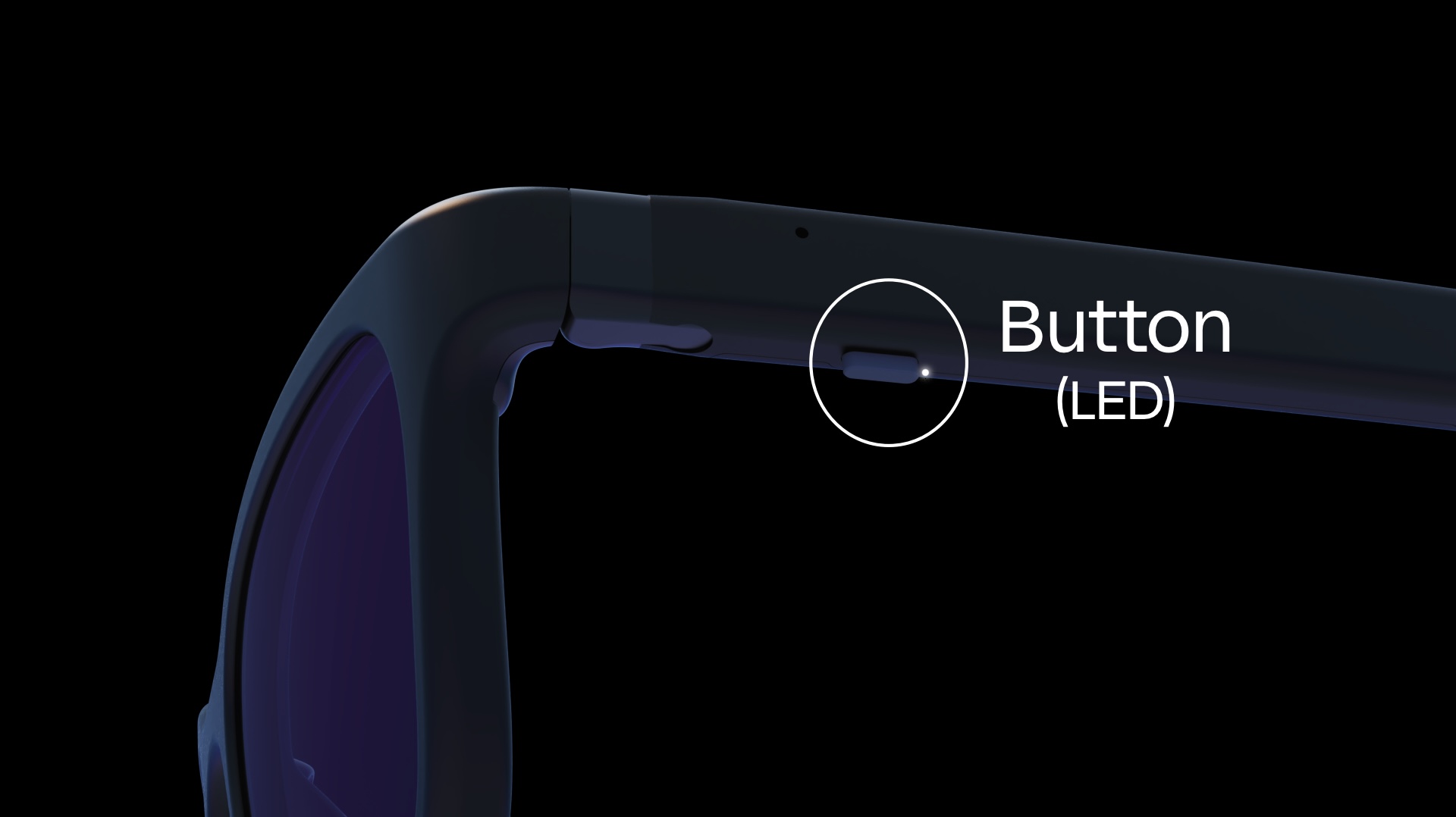
Halo has a button under the left arm for power, pairing, and app-defined functions.
| Button action | What it does |
|---|---|
| Click | Wakes Halo from sleep. When Halo is awake, clicks are handled by the app you’re using — for example, Brilliant Noa uses them to control assistant conversations and note taking. |
| Hold for 2 seconds, until a beep | Sleep. Click the button to wake Halo. |
| Hold for 5 seconds, until a chime | Pairing mode. The white LED flashes and Halo stays in pairing mode for about a minute. Existing paired devices are kept, and up to 5 devices can be paired with Halo. |
| Hold the button, attach the magnetic charger, then release the button within 10 seconds | Restart |
| Hold for 15 seconds | Factory reset (see below) |
Releasing the button anywhere between 5 and 15 seconds just opens pairing mode — nothing is erased.
Apps can also respond to double clicks and long presses (held for 1 second and released before 2 seconds). Developers can find the details in the Lua API reference.
Factory reset
Holding the button for 15 seconds wipes Halo’s filesystem, removing all files including the list of paired devices and any installed app, and then places Halo into ship mode. Disconnect the charger before doing a factory reset.
In ship mode Halo is fully powered off and will not wake from a button click. Attach the magnetic charger to wake it.
A factory reset clears Halo’s list of paired devices, but your phone or computer still remembers Halo. Before reconnecting, remove (forget) Halo in your phone’s or computer’s Bluetooth settings, otherwise pairing may fail with errors such as “Peer removed pairing information” or “Encryption is insufficient”.
Recovery mode
If Halo won’t start up or respond normally, recovery mode erases its storage and lets you reinstall firmware.
- Hold the button, then attach the magnetic charger while still holding it.
- Keep holding for 10 seconds after attaching the charger, then release.
- The white LED blinks slowly on and off (1 second on, 1 second off), instead of the gradual pulse it shows while charging. Halo is now in recovery mode. Only firmware updates are possible, using an SMP (MCUmgr) firmware update tool — see Firmware updates.
Entering recovery mode also performs a factory reset, erasing all files and paired devices. Forget Halo in your phone’s or computer’s Bluetooth settings before reconnecting.
To leave recovery mode, click the button. Halo also restarts by itself after 2 minutes without a Bluetooth connection.